
Create an SMS Keyword
An SMS Keyword is used to define an automated workflow that executes when a Member texts a specified keyword to your Short Code.
The Loyalty platform allows you to create a new SMS Keyword, either by copying an existing SMS Keyword, or by defining a new SMS Keyword from scratch.
Copy an Existing SMS Keyword
To copy an existing SMS Keyword to use as the basis for a new SMS Keyword:
-
Select Campaigns from the top navigation bar, then select Campaigns > Inbound SMS from the side navigation menu. The Inbound SMS screen is displayed.
-
Search for and select the desired SMS Keyword (see Search for an SMS Keyword for more information on the available search options). The SMS Keyword Details screen is displayed, with the Definition tab selected by default.
-
In the header section of the SMS Keyword Details screen, click the Copy icon. The system creates a new SMS Keyword and displays the SMS Keyword Details screen. The default name of the new SMS Keyword is the name of the base SMS Keyword , followed by an incremental counter, such as "(1)."
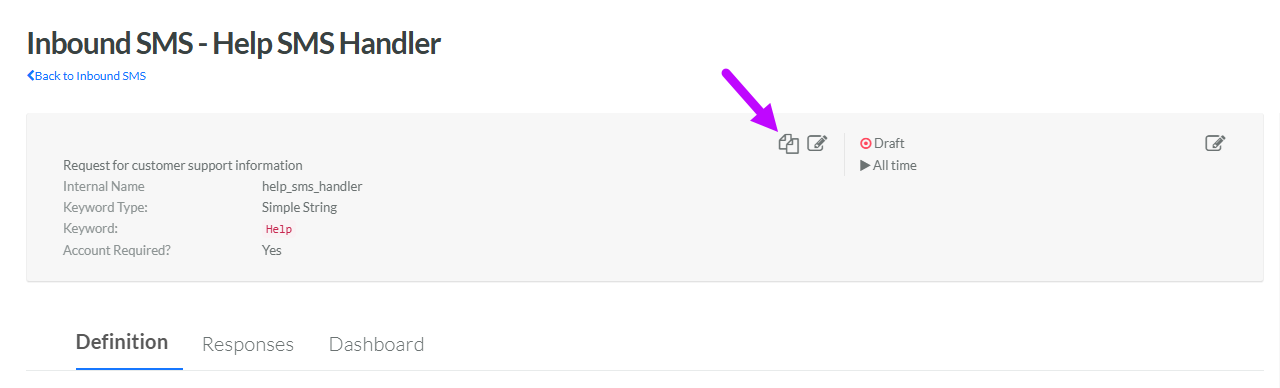
See View an SMS Keyword for more information on how to configure the new SMS Keyword.
Create an SMS Keyword from Scratch
To create an SMS Keyword from scratch:
-
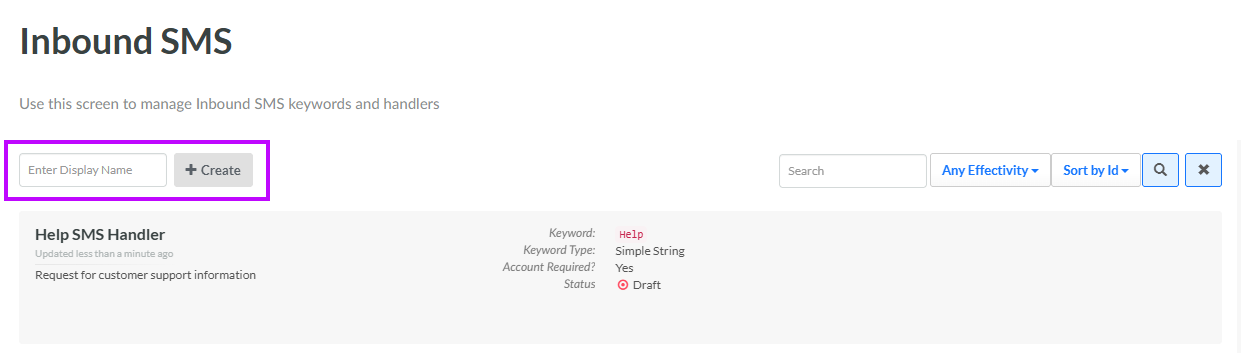
Select Campaigns from the top navigation bar, then select Campaigns > Inbound SMS from the side navigation menu. The Inbound SMS screen is displayed.
-
In the Display Name field, enter the name of the new SMS Handler.
-
Click Create. The Edit Inbound SMS pop-up window is displayed.
-
The Display Name field is populated with the value you entered above; optionally edit this value.
-
The Internal Name is automatically populated based on the Display Name value. This field is not editable by default. To edit the Internal Name, check Edit Internal Name. A confirmation dialog box is displayed; click Ok. Edit the Internal Name value.
-
Optionally, in the Description field, enter a description of this item.
-
From the Keyword Type drop-down menu, select one of the following:
-
Simple String: The keyword is a static text string.
-
Regular Expression: The keyword uses Regex to detect a text pattern, such as an email address, ZIP code, or phone number.
-
Keyword with Parameter: The Member is expected to text a keyword, followed by a parameter value. For example: "EMAIL thomas.anderson@gmail.com." In this scenario , the platform will recognize that the first word is the keyword, and the second word is the value that needs to be captured and stored in the database.
-
-
By default Account Required is checked. This feature will limit the platform to sending the automated reply only to known Members. Optionally, uncheck this option to always send the SMS Keyword reply, even to unknown individuals.
-
Click Save.
To configure additional details, click the SMS Keyword on the Inbound SMS screen. The SMS Keyword Details screen is displayed. See View an SMS Keyword for more information.
